
Making a Manual Outgoing Call
The preferred way to initiate an outgoing call is through the SMS tab in VMOS. By initiating the call this way, it can be tracked and recorded through VMOS.
Select the SMS icon and input the customers phone number. Select the customer and click Open Conversation.
From within the message thread, select the phone icon to initiate the outbound call.
Outgoing Call to Someone Not In Sitelink
To initiate an outgoing call, select the Tasks icon and choose Dial Number.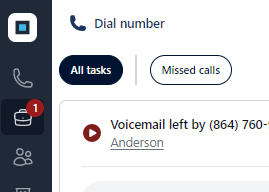
Select the location for the call and input the phone number and hit the green arrow to dial out.
You will need to navigate to your PMS in a separate window to review account information or to input notes.
Calls made this way cannot be put on hold and will not be tracked or recorded via VMOS.
Important Note: You can accept an incoming call while on an outgoing call. Simply click the X in the top right-hand corner of the outgoing call, navigate to the Call icon, and accept the call. The new call will be put on hold while keeping the current call active. To get back to the active outgoing call, just go back to the Task icon, select Dial Number, and the call will reappear.
Comments
0 comments
Please sign in to leave a comment.